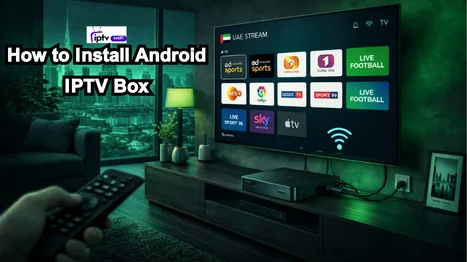
Setting up an Android IPTV box in the UAE should not feel technical or complicated. In reality, the entire process is straightforward when you understand what each step actually does. Whether you live in Dubai, Abu Dhabi, Sharjah, or anywhere else in the UAE, installation usually takes less than 15 minutes if your internet connection is stable and your subscription details are ready.
At its core, installing an Android IPTV box involves four main actions: connecting the box to your TV, connecting it to the internet, installing an IPTV player app, and entering your subscription credentials. Everything else is simply optimization.
This guide walks you through the complete setup process in a clear, practical way. It also explains how to avoid buffering, how to configure the right video settings, whether you need a VPN in the UAE, and how to fix common problems if something does not work immediately.
Before You Start: What You Actually Need
Many installation problems happen because users begin without checking the basics. Before plugging anything in, make sure you have the following ready.
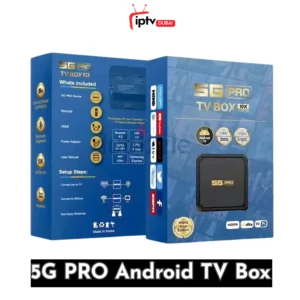
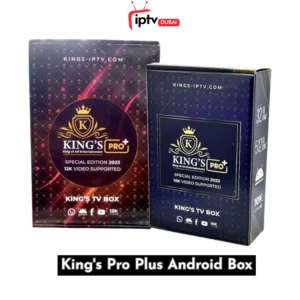
You need an Android IPTV box. This can be any Android-based TV box that supports the Google Play Store. Most models sold in the UAE already run Android 10 or newer, which is perfectly fine for IPTV.
You need a TV with an available HDMI port. Almost all modern TVs support HDMI, but confirm that at least one port is free.
You need an HDMI cable and the box’s power adapter. Most boxes include both inside the package.
You need a stable internet connection. In the UAE, this typically means Etisalat or Du fiber. While WiFi works, a wired Ethernet connection is always more stable, especially for live sports or 4K streaming.
Finally, you need your IPTV subscription details. This may be provided as:
- An M3U playlist URL
- Stream Codes login (server URL, username, password)
- A portal URL (less common on Android, but still possible)
If you have these ready, installation will be smooth.
Step 1: Connect the Android IPTV Box to Your TV
Start with the physical setup. Plug one end of the HDMI cable into the IPTV box and the other into your TV’s HDMI port. Then connect the power adapter to the box and plug it into a wall outlet.
Turn on your TV and use the remote to select the correct HDMI input source. Within a few seconds, you should see the Android startup screen. If nothing appears, double-check the HDMI port selection.
Once the home screen loads, the hardware setup is complete.
Step 2: Connect the Box to the Internet
Your IPTV box now needs internet access. Without a stable connection, channels will not load properly.
If you are using WiFi, open Settings from the Android home screen, go to Network or WiFi settings, select your home network, and enter the password carefully. Wait for the connection confirmation.
If possible, use an Ethernet cable instead. Simply plug the cable from your router directly into the IPTV box. Most Android devices automatically detect wired connections, which significantly reduces buffering.
After connecting, open a browser or a speed test app to confirm that your internet is active. For HD streaming, you should have at least 10 Mbps. For stable 4K streaming, aim for at least 25 Mbps.
Step 3: Sign in to the Google Play Store
While not mandatory, signing in with a Google account is strongly recommended. It allows you to download IPTV apps directly from the Play Store and keep them up to date.
Open the Google Play Store, sign in with your Gmail account, and complete any verification steps. Once logged in, you are ready to install your IPTV player.
Step 4: Install an IPTV Player App
Android IPTV boxes do not automatically include channel apps. You need a dedicated IPTV player to load your subscription.
Open the Google Play Store and search for one of the following apps:
IPTV Smarters Pro – Simple, clean, and beginner-friendly.
TiviMate – Advanced layout with strong customization.
XCIPTV – Modern interface with stable performance.
Install your preferred app and open it once installation completes.
For most users in the UAE, IPTV Smarters is the easiest starting point because its setup process is simple and clear.
Step 5: Enter Your IPTV Subscription Details
When you open the IPTV app for the first time, it will ask how you want to log in. This depends on your provider.
If your provider gave you an M3U URL, select the option to add a playlist using M3U. Paste the full link carefully. Even one missing character will prevent channels from loading.
If your provider gave you Xtream Codes details, choose to log in with the Xtream Codes API. Enter the server URL exactly as provided, then enter your username and password. Double-check spelling and avoid extra spaces.
After entering your details, press the login button. The app will begin downloading channel lists. This may take one to three minutes, depending on the playlist size.
Step 6: Let Channels Load and Configure Basic Settings
Once logged in, your channel categories will appear. At this stage, allow the Electronic Program Guide (EPG) to load fully. Interrupting this process can cause guide issues later.
After channels appear, go into settings and make a few adjustments for better performance:
Set the video resolution to match your TV’s capabilities.
Enable hardware acceleration if available.
Choose the default media player inside the app.
If your internet is unstable, avoid forcing 4K resolution.
After these adjustments, your IPTV box is ready to use.
Optimizing Performance for UAE Internet Connections
Dubai and other UAE cities generally offer strong internet speeds, but performance still depends on network setup.
Use Ethernet whenever possible. WiFi interference from walls or neighboring networks can cause buffering.
Keep your router in an open area, not inside cabinets.
Restart your router once per week to refresh the connection.
Close background apps on the Android box to free up memory.
If your box feels slow, clear the IPTV app cache from Android settings.
These small adjustments make a noticeable difference in streaming stability.
Do You Need a VPN for IPTV in the UAE?
Whether you need a VPN depends entirely on your IPTV provider. Some services function normally on Etisalat and Du networks without additional configuration. Others may recommend using a VPN for activation.
If required, you can install a VPN app directly from the Google Play Store. After installation, connect to the recommended server location, then open your IPTV app.
Keep in mind that VPN usage may slightly reduce internet speed. If you already have stable streaming without a VPN, there is usually no need to add one.
Always ensure you understand local regulations and choose services responsibly.
Common Problems and Practical Fixes
Even with correct installation, occasional issues can occur. Most problems are easy to solve.
If channels are not loading, first confirm that your subscription is active. Then recheck your login details. Restart the IPTV app.
If you see buffering, run a speed test. If speeds are low, switch to Ethernet—lower video resolution inside the app.
If you receive login errors, carefully re-enter the server URL, username, and password. Copy-paste errors are common.
If the EPG does not load, refresh guide data inside the app settings and wait a few minutes.
In most cases, restarting both the router and the IPTV box resolves temporary issues.
How Long Does Setup Take?
For most UAE users, installation takes between 5 and 15 minutes. First-time setup may take slightly longer because apps need to download and playlists must load fully.
If your internet is slow or credentials are entered incorrectly, setup time increases. Once configured correctly, daily use requires no additional setup.
Final Thoughts
Installing an Android IPTV box in the UAE is not a complicated technical task. It is a simple process of connecting hardware, installing the right app, and entering accurate subscription details. Most performance issues stem from an unstable internet connection or incorrect login information rather than the device itself.
With a stable Etisalat or Du fiber connection and proper configuration, an Android IPTV box delivers smooth HD and 4K streaming across international, Arabic, Indian, and sports channels.
Once installed correctly, the system requires minimal maintenance and provides a flexible alternative to traditional TV services throughout 2026 and beyond.